


How to Make Paths in Photoshop: A Friendly Guide from My Experience
from web site
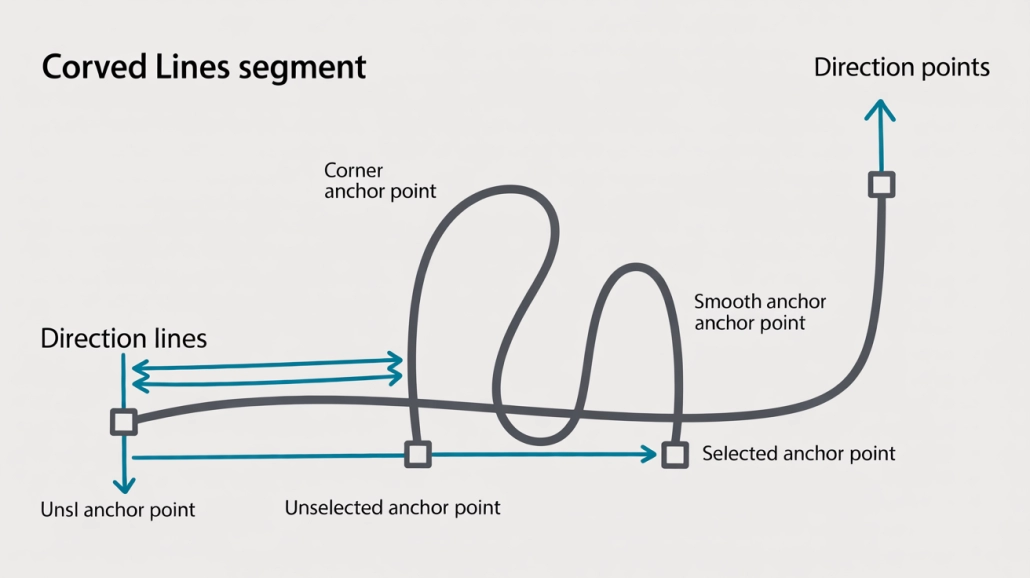
Hey there! If you’ve ever dabbled in Photoshop, you know that making clean, sharp selections is a game-changer. But when it comes to complex shapes or detailed images, relying on simple selection tools just doesn’t cut it. That’s when I discovered the magic of How to Make Paths in Photoshop and honestly, it changed how I work forever.
Let me tell you a quick story: When I first started editing product photos for an e-commerce client, the images had tricky edges and lots of curves. Using the lasso or quick selection tool left me frustrated with rough edges and lost details. Then, I found the Pen Tool — and with it, the ability to create paths that were precise and smooth. Since then, making paths has become one of my go-to Photoshop skills. And in this article, I want to share exactly how you can do it too, with simple steps and handy tips!
What Are Paths in Photoshop, and Why Should You Care?
A path in Photoshop is like an invisible outline you create around objects. Think of it as a clean, editable line that you can adjust anytime. Paths are vector-based, which means they scale without losing quality — perfect for logos, product cutouts, or detailed photo editing.
Short answer: Paths let you make clean, precise selections and shapes that you can edit freely.
Step-by-Step: How to Make Paths in Photoshop
Here’s the straightforward way to get started with making paths in Photoshop:
Step 1: Open Your Image and Select the Pen Tool
- Launch Photoshop and open the image you want to work on.
- From the toolbar on the left, select the Pen Tool (shortcut: P). It looks like a fountain pen tip.
Step 2: Start Creating Anchor Points
- Click on the edge of the object to place your first anchor point.
- Move to the next point along the edge and click again to create a straight line segment.
- To create curves, click and drag to pull out handles that shape the curve smoothly.
Step 3: Close the Path
- Continue placing points around your object until you reach the starting point again.
- When you hover over the first anchor point, click to close the path. You’ll see a small circle appear next to the pen tool cursor indicating closure.
Step 4: Adjust the Path
- Use the Direct Selection Tool (shortcut: A) to click on individual anchor points or handles.
- Drag points or handles to perfect your path until it hugs your object just right.
Step 5: Save and Use Your Path
- Open the Paths panel (Window > Paths).
- You’ll see your Work Path listed. Double-click it to save it with a custom name.
- Right-click your path and choose “Make Selection” if you want to turn it into a selection.
- From here, you can create masks, cut out objects, or fill the selection.
Tips for Perfect Handmade Paths from My Experience
Making paths may sound technical, but with some practice, you can get beautiful results. Here are some personal tips that helped me:
- Zoom in closely. Work at 200-300% zoom to place points accurately along edges.
- Less is more. Place anchor points only where the path changes direction. Too many points make the path jagged.
- Master curves with handles. Drag handles evenly and smoothly. Practice makes this feel natural.
- Use shortcut keys. Hold Alt (Option) to switch the Pen Tool to "Convert Point Tool" for easy handle adjustment.
- Be patient. It takes time to get perfect. Don’t rush — smooth paths create better results later.
- Save your path early. Paths can be edited later, so don’t worry if it’s not perfect the first time.
When to Use Paths vs. Other Photoshop Selection Tools?
I often get asked, “Should I use the Pen Tool to make paths, or just rely on selections like Magic Wand or Quick Selection?” This is where I usually point to this helpful discussion on Quora: How do you create a path in Photoshop?
Here’s my take:
- Use paths when you need precision and flexibility — like cutting out product photos for e-commerce or creating logos.
- Use Quick Selection or Magic Wand for fast selections when edges are clear and contrasty.
- Use Lasso Tools for rough or freehand selections where precision isn’t critical.
- Combine these methods — for example, start with Quick Selection and refine edges with a path.
Paths offer the best control but require more time, so they’re ideal for professional edits and projects where quality matters most.
Wrapping Up: Why Learning How to Make Paths in Photoshop Matters
Learning How to Make Paths in Photoshop truly elevated my editing skills. For any e-commerce business or professional photographer, it means cleaner images, sharper details, and ultimately, happier clients. Whether you’re a dropshipper needing perfect product shots or a social media influencer editing branded content, mastering paths gives you a serious edge.
So, next time you’re stuck with messy selections, remember the Pen Tool and paths are your friends. Try the steps I shared, practice the tips, and don’t hesitate to revisit that Quora thread for community advice.
If you want to up your Photoshop game and ensure your images look professional and polished, paths are a must-have skill. Give it a try today!
Company Information:
Website: https://www.expertclipping.com/
Facebook: https://www.facebook.com/expertclipping
Contact : https://www.expertclipping.com/contact/
Resources: https://www.expertclipping.com/blog/
Youtube: https://www.youtube.com/c/Expertclipping-ec
Twitter: https://twitter.com/expertclipping
Quote: https://www.expertclipping.com/free-quote/
Office Address
UK OFFICE
24 Longbridge Road
Barking Essex IG118tnv
Phone: 02036093822
24 Longbridge Road
Barking Essex IG118tnv.
E-mail: hello@expertclipping.com
Phone: +44 02036093822
ITALY OFFICE
168 Belaws, 4th Floor
Via Tolpada 21, 11400
